
January 17th, 2025
How to AP World [Part 1]
Part 1 – Someone Else’s YAM🍠JAM
If you’re here then you’re interested in joining an Archipelago AP Rando and want to know how.
This is for someone where they are NOT hosting and want to join someone else’s AP World
I’m going to cover from simple to slightly harder ways of joining in.
From just getting a YAM on the website to super growing your own YAM.
Any games you want to play you have to have. Either the ROMs/ISOs or the game downloaded, etc. This doesn’t download any games. I think there are some that don’t need a ROM, but unsure.
Because the files you get are .yaml, I call them YAMs. cuz it’s cute
First is this website: https://archipelago.gg/ <– that’s the main official website.
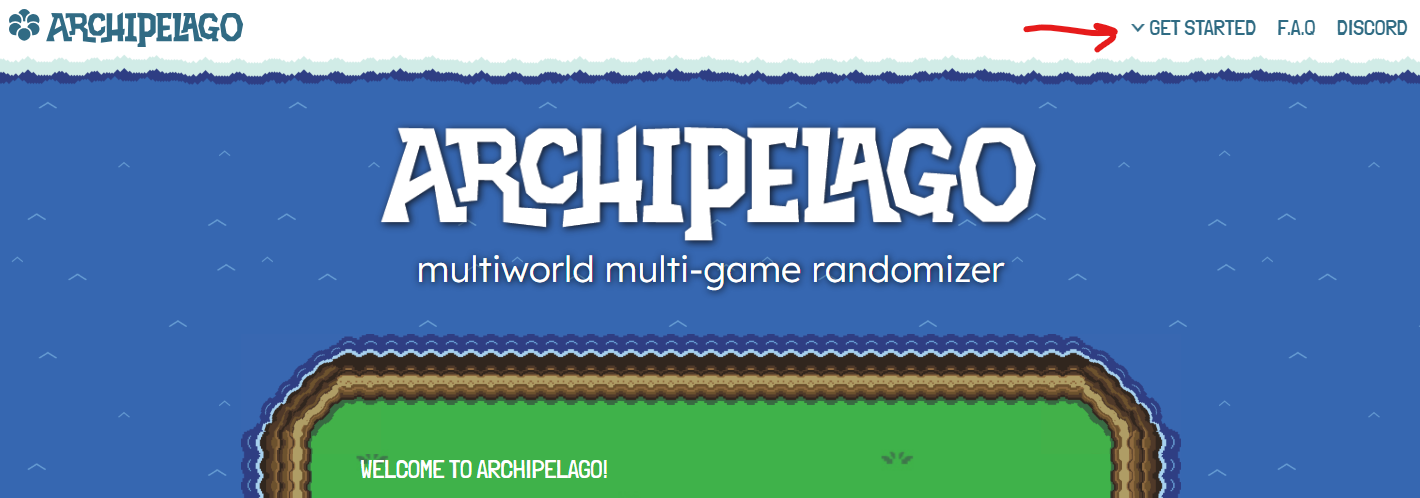
In the upper right corner is Get Started. You can poke around at it and that might be all you need.
However if you are clueless on which one you want for a YAM, you’ll be wanting Supported Games for now.
Which brings up the list of games that are officially supported. Sometimes these update, but it’s glacially slow. I’ll be going over unofficial games after the official stuff.
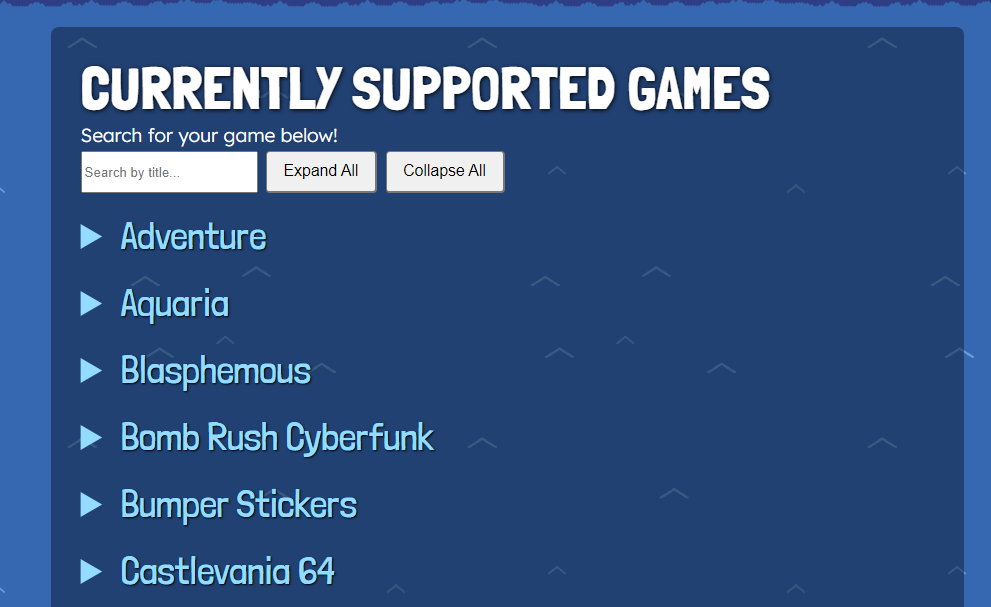
Here you can search for a game at the top or if you know which game you want just scroll to it. If you don’t see your game it’s probably an unofficial game, so just hold tight.
YAM🍠time
Here I’m using Adventure as an example. All of the ones here will have an Options Page. I’ll cover Advanced Options later.
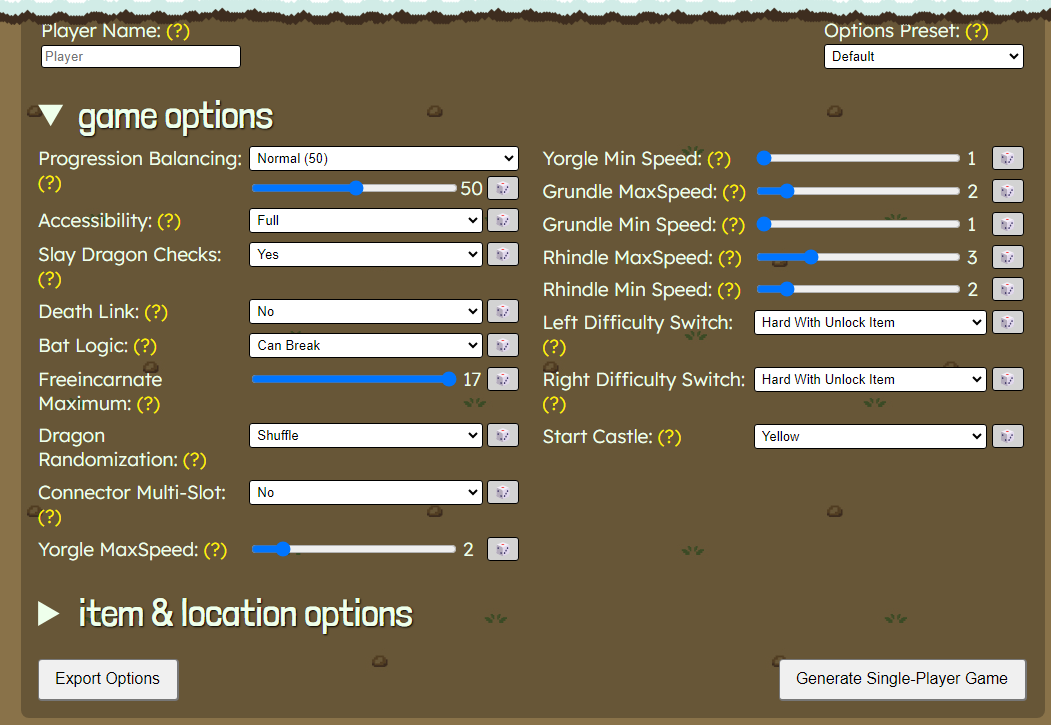
This is the harder part of the YAM process. What all the options do.
I’m gonna cover the ones that are usually in each YAM. Stuff on this on like “Slay Dragon Checks” are unique to this game. If you don’t quite understand an option you can hover over the (?) and it might give you a clue. If anything you can leave it alone OR turn it on and see what happens.
(Enter a Player name. Doesn’t have to be on your are attached to)
Progression Balancing: How fast do you want to progress. Normal is 50, harder is LESS balance and easy is MORE balance. You can click the 🎲 if you just want it random. Who knows how hard or easy it is.
Accessibility: I honestly don’t know how this really affects the game. Default is usually “Full” or “Items”. I’m assuming Minimal is only what is needed for “Go Mode”. So if you want useful items… might have to wait.
Death Link: You die, everyone that has this set on dies. Might cause an end to friendships if you are bad at game and die too much.
item & location options:
This is a section where you can move the items around. Like if you want an easier time you can start with say an upgraded sword or in Zelda the “Any Key” (Magical Key), etc.
- Local items: These are in your world.
- Non-Local items: These will always be in other people’s worlds
- Start Inventory: You start with these on you.
- Start Hints: Archipelago has a hint system to see who and where the item is. You can start with items pre-hinted.
- Start Location Hints: You can start with it telling you what is at that location. (Useful if there’s a place you hate going and you want to see if there’s really something important there or you can skip it.
- Excluded locations: These locations will NEVER have progression items. (Useful for if you REALLY don’t want to go to that place. Or if you want to skip a place)
- Priority Locations: These locations will ALWAYS have a progression item (maybe even one’s marked ‘useful’) If there’s a place you always have to pass that’s a slog and you want to make sure there’s SOMETHING someone needs there for your time and effort.
Note: your YAM will break if you create a paradox. Like having a <locationA> marked as being important and not important.
Now that you’ve set your options up, click Export Options. Save the .YAMl (.yaml) somewhere where you can find it.
Congrats you have grown your own YAM. Now hand it off to whoever is hosting so they can bake it. Your part is done and since it’s from the official website it shouldn’t throw an error.
Advanced Options YAMs
or “Randomize the Randomize”
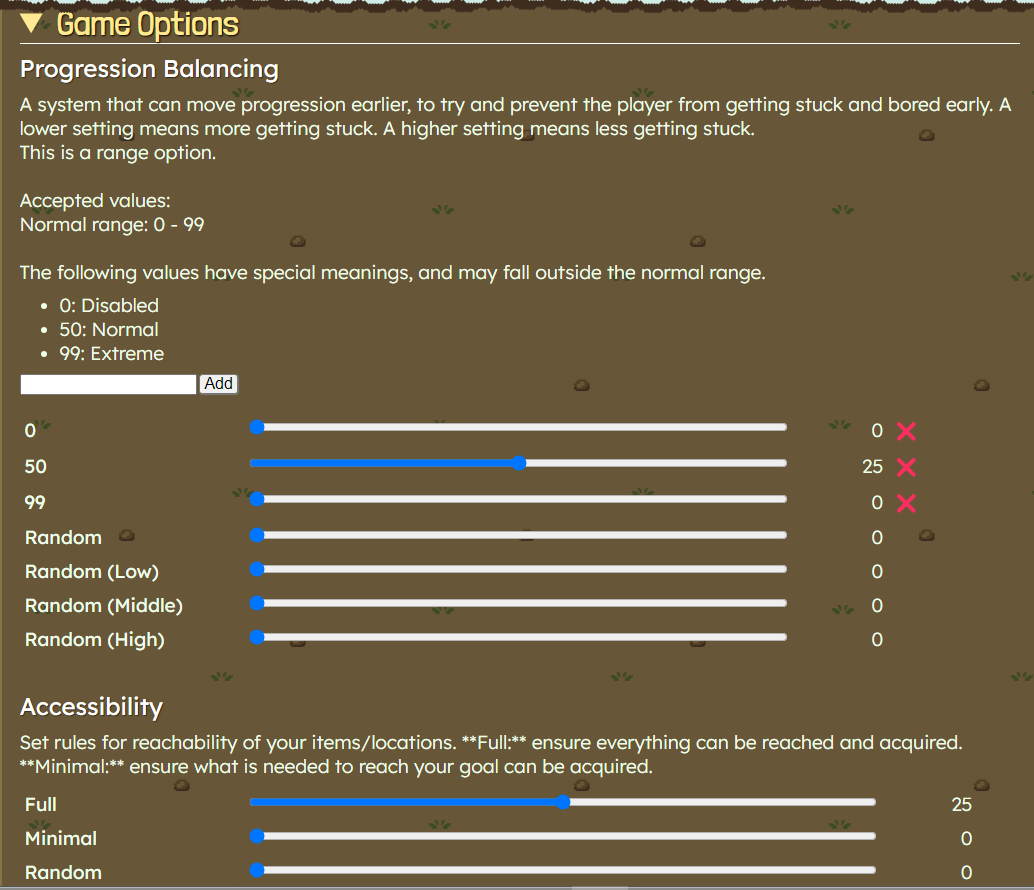
If you are looking at that and your head exploded. Don’t worry, you can still grow your own YAM. These however will be the options laid out in the .yaml file when you get it and have to manually edit it. You can do this!
All of these are for Weighted Options. Like in Progression Balancing, it can be randomized to favor no balance, normal balance or all balance. Or favor lower balance, middle balance or high balance. Or just be completely Random.
You can set the sliders up however you like. Basically you are randomizing the randomizing with these options.
(if you are kinda confused because on easy it was 50. 50 is just the Balance number (0 none - 99 all balance). 25 here is the weight number, how likely it is to get chosen.
Example (Slay Dragon Checks):
No: 20

Yes: 8

Random: 37
“No” has more of a chance of being chosen than “Yes”, and less of a chance than “Completely Random”. Where completely random will do a coin toss and pick either Y or N. Why do you want the random slider up rather than weighing one option over the other? Up to you. Perhaps you like chaos :3
Number Range Example
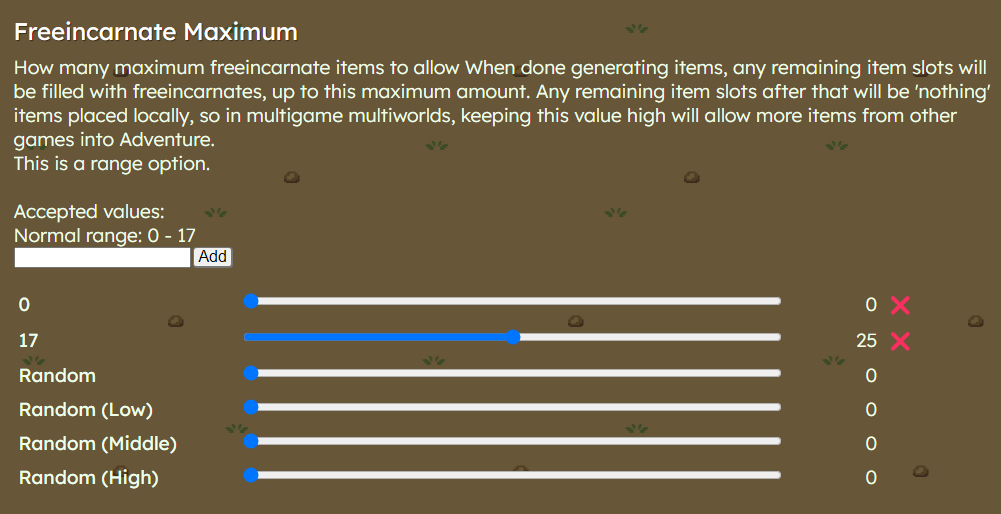
Freeincarnate Maximum (number range example): Here you can set a specific amount of <item/money/badges/etc.> to get chosen. Favor 0, favor 17, Completely Random, favor a lower number of <item>, favor a middle number of <item>, favor a higher number of <item>. There’s an even cooler way of doing this if you want a narrow range that I’ll explain in the next section.
The item section is the same as above, but laid out in a list than a grid.
These YAMs also shouldn’t throw errors? Paradox locations apply here too.
Grow your own YAM 🍠
(AKA: My game isn’t listed but I know there’s an AP World for it)
This section is probably one most people will want if they have an unofficial game in mind. It’s not really any harder than above, however it requires a text editor and no sliders.
The important site here is: Multiworld News
I’ve linked to the AP World list rather than the homepage because the homepage is just news and the links to the worlds are tiny and at the top.
So many games!
I’m going to use Yu-Gi-Oh Forbidden Memories here as it’s one that’s not yet officially supported.
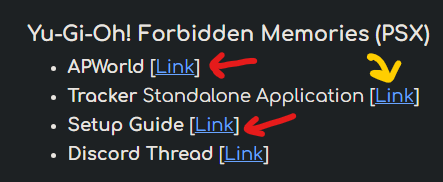
So Ctrl-F and search up your game name. It should have at least an APWorld listed. It might have a setup guide listed. If you are lucky it might have a tracker. Usually setting up the YAM and World are the same for all of them.
I’m going to go through the HARD process, because the YAM template you get if going to be the one that works with the World you download. Also sometimes the Template .yaml isn’t provided.
This one will nod towards setting up your own AP World as we’ll need the Archipelago files.
If this is scary then a lot of the APWorld download will have a Template .yaml along side the .apworld. IF there’s something like connector_<something>.lua grab that too. Editing the YAM is the same as in HARD mode, but you’ll be skipping the Archipelago Launcher process and go straight to Expert YAM Growing.
Ready?
Archipelago Launcher!
A lot of this is covered under the Setup Guide on the Archipelago.gg website. I’ll distill it down to only what we need.
The program: Archipelago (scrooooooooll down the text wall to the bottom and pick your flavor. I’m going to do Windows, but there’s Mac and Linux builds. Grab “Hotfix1” if it’s still 0.5.1) Install it to a place and yo should get a shortcut to the folder on your desktop.
The AP World: Click on the [Link] to the APWorld (.apworld). You want to save this in <ArchipelagoFolder>/lib/worlds (The shortcut on the desktop should open the folder for you if you want to drag and drop the file)
Now the slightly scary part: In the <ArchipelagoFolder>/ look for ArchipelagoLauncher.exe (or the Linux/Mac equivalent)
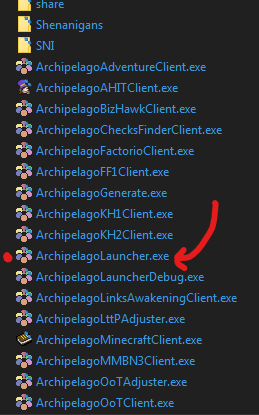
It might take a slight bit for it to load. (My computer is maybe a potato)
YOUR’S WILL LOOK SLIGHTLY DIFFERENT! (I have other stuff I installed. Yes I’ll talk about that YAMl Creator)
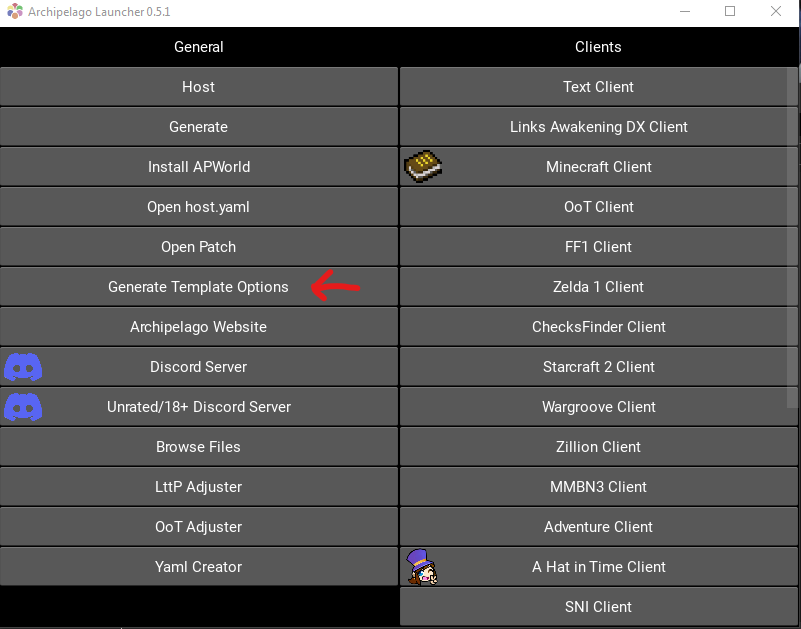
What you want to do now is Click Generate Template Options And wait. If it does nothing, click it again. Sometimes the interface needs a second click. A folder will pop up with YAMs in it. If it throws an error, it might be due to the fact the APWorld version is incompatible with the Archipelago version. Getting the latest Archipelago might help.
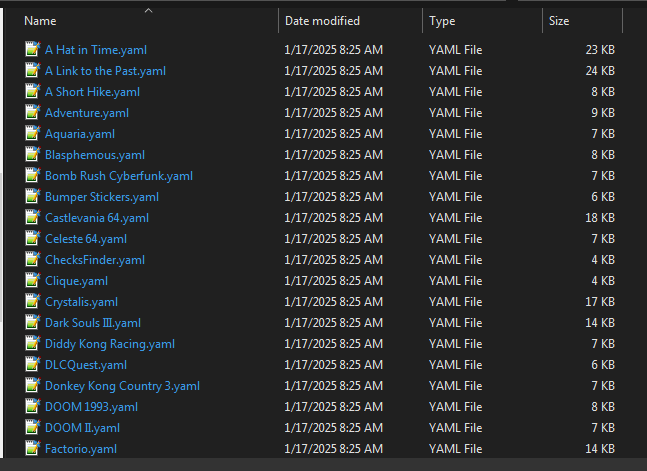
If the YAM folder doesn’t pop up it’s at <ArchipelagoFolder>/Players/Templates if you need to go there manually.
You can close Archipelago Launcher. We are done with it. Yes we only needed to click that one thing.
HARD Process over!
Expert YAM Growing Time!
In the Template folder, or where you saved the YAM of the webpage where the APWorld was is your .yaml file.
You might have to scroll down in the list of YAMs to find it if you did HARD mode, but it should be there. In our example it’s named Yu-Gi-Oh! Forbidden Memories.yaml. A good idea to copy this elsewhere if you are getting it from the Templates Folder else it will be overwritten.
Open this up in a text editor of choice. I use Notepad++. A Text editor that does code highlighting is a very big BONUS else it’s just a wall of text.
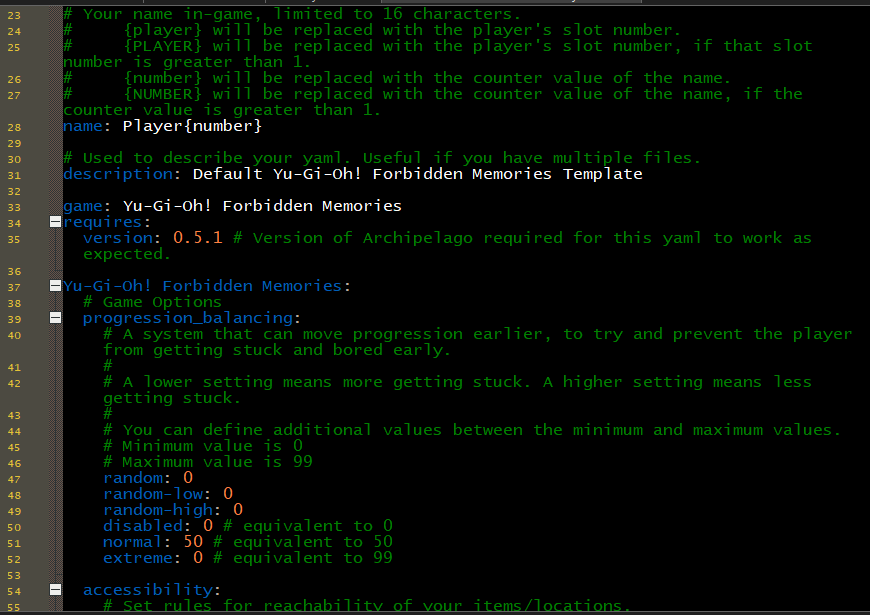
Some of these options should look familiar if you did the website options mode. But let’s go over some of them:
- Player name: All game settings (I don’t say YAMs because you can have a multigame YAM… I’m not going to cover that as it’s a headache) have to have a unique name. You can come up with one for each game or you can let Archipelago do it by adding {number} after it. It will then make Name1, Name2, etc. {NUMBER} does the same but you now get Name, Name1, Name2. {Player} will just make your name 1,2,3 with your slot number.
- Game: requires: version: This is the Archipelago version needed to make the YAM bake. If it’s lower it might still bake. YAMs created on the website don’t even have this.
- Progression Balancing: Remember those sliders from up top? There here! But numerical. The “equivalent” here is if you just set the option to that at
50.
A feature of Expert YAMs is that you can just have it progress_balancing: random and leave it at that.
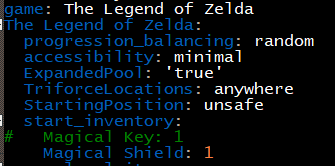
The rest of the settings in the YAM are like on the page with the sliders, only you have to put in the numbers yourself. The YAM itself should have things commented on what the option does. As you can see for items, that’s how they are listed in the YAM. Just a list of items and then a number for how many exist in the game.
Another feature of an expert YAM is Random Range!
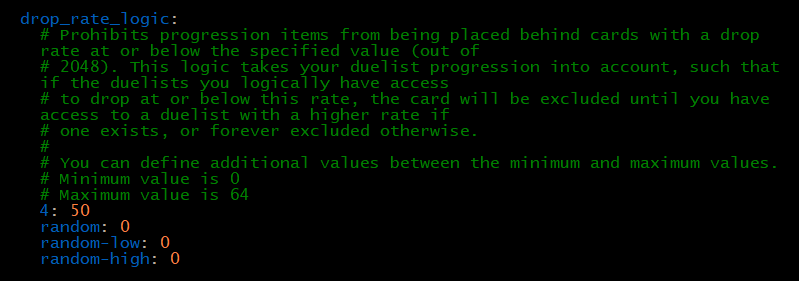
Here there’s a range for Drop Rate Logic. Instead of having a value then a weight. You can go random-range-0-64 here or if you wanted to start at 15 and then go to “random-high” random-range-15-64. As far as I know, negative numbers don’t work. So it’s 0-<whateverMaxIs>, if your YAM’s range starts at 0. Messing with this can throw errors if you aren’t paying attention and put something out of range like if I did 34-100 here. Max is 64.
Again when you are done with your YAM you will hand over your YAM (.yaml) AND the APWorld (<myGame>.apworld) to the person hosting. Hopefully the YAM bakes and doesn’t throw errors.
Game time!
After your YAM has been baked by the host. The host should post a webpage link. https://archipelago.gg/room/<seriesOfNumbersAndLetters> you will go there and download the .ap<something> file.
SOME GAMES DON’T HAVE PATCH FILES. This is fine. In the game itself it will have an interface to input that into OR ask you to edit a file to put in your PlayerName and the port number. (Games such as: Faxanadu, Tyrian, Bumper Stickers….).
If you Expert YAMed, the Host will post your patch file somewhere you can download it. (If it’s Discord it’ll be in chat usually or a thread)
I’m only gonna cover emulated games as I haven’t played a modded game yet. Usually these have a modfile you use as if you were modding the game normally. Check the setup section for your game.
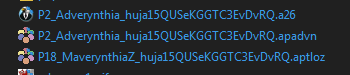
Double clicking on the patch file either should bring up your emulator of choice, and a text client or the window to associate .ap<something> with Archiopelago. Archipelago might also ask you where the rom/iso is. Just tell it where you dropped that and it’ll make a patched rom file for you. If it errors you might not have the right version of the file. Usually in the notes to the APWorld they’ll give a checksum to the ROM/ISO.
Archipelago will probably open Emuhawk. If you are running Zillion you have to manually open RetroArch.
Now depending on the game and host.yaml setup. The text client may connect on it’s own.
Now depending on the game and host.yaml setup. The lua window may open and connect on it’s own.
You don’t have control over host.yaml here.
I’ve had games that do both. Zelda will text connect but not lua and other games will lua but not Connect.
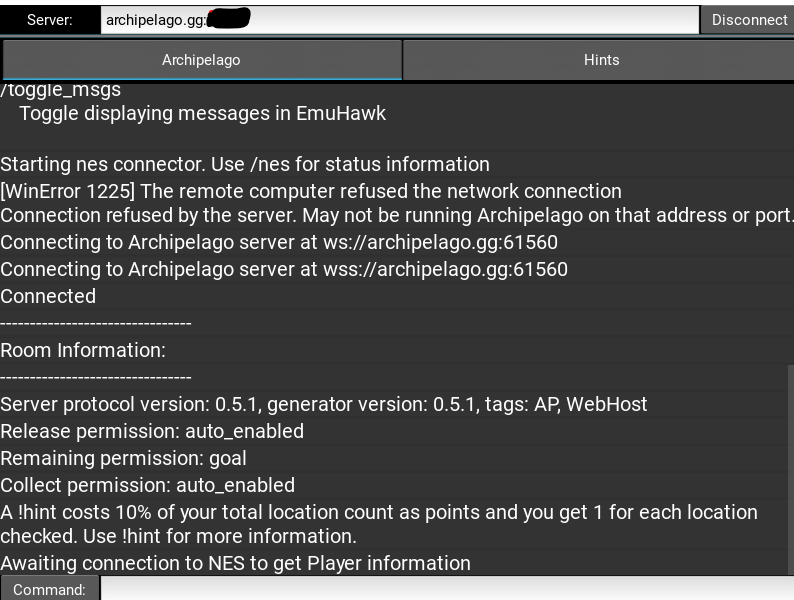
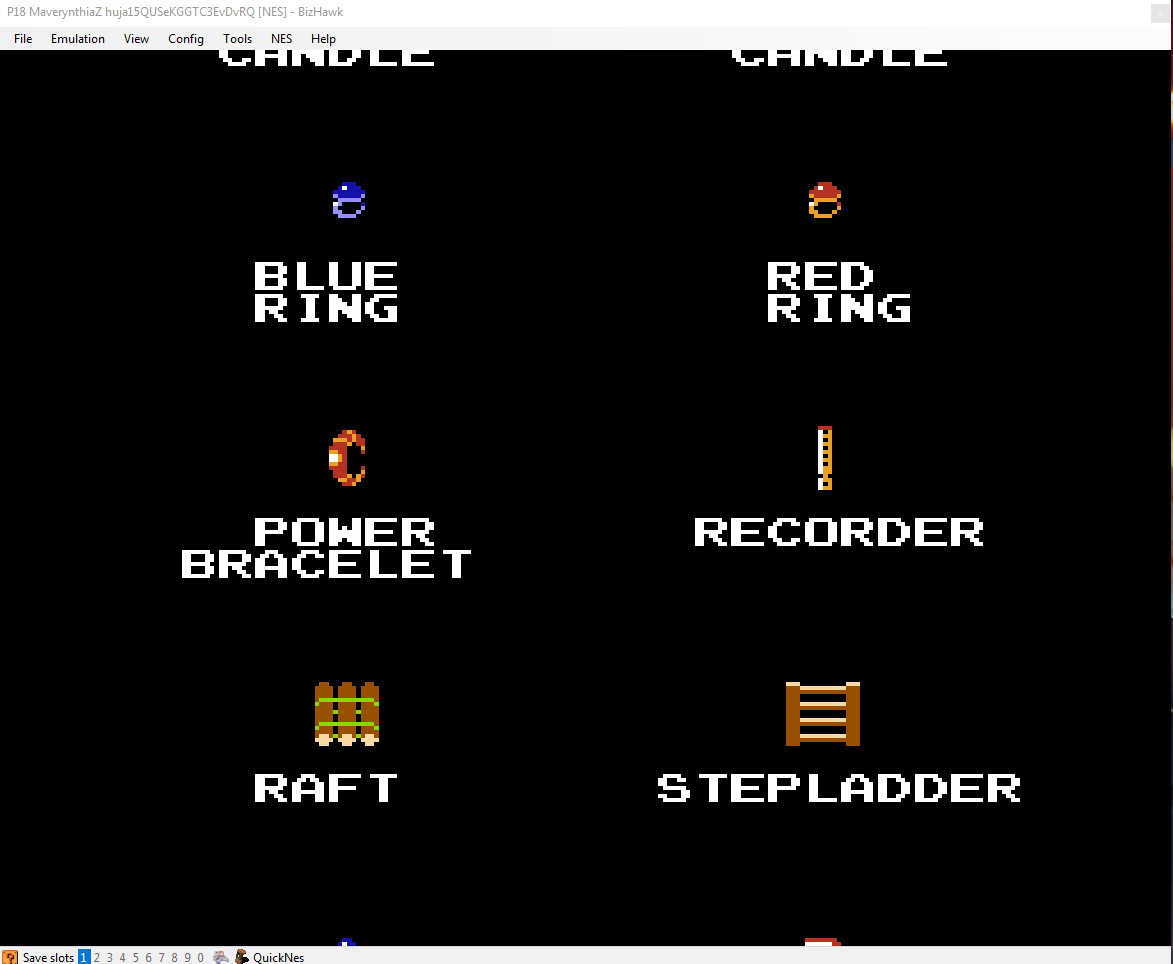
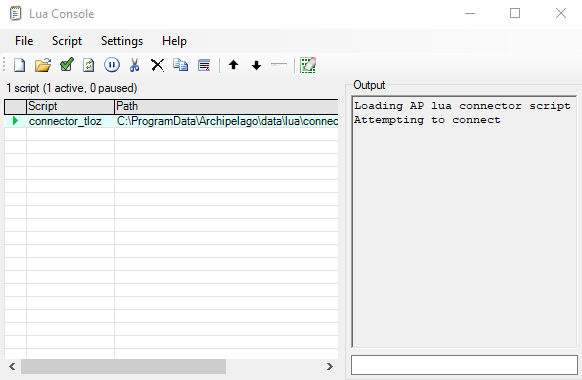
These are the 3 windows that will popup, or should popup. You might need to open some yourself.
The Text should be:ArchipelagoBizHawkClient.exe if you are using Emuhawk. Your setup might tell you something different. Zillion and other games have their own official text clients. You might need to click Connect in the upper right to get things going.
Next window is Emuhawk. If you don’t have the lua window open, you might need to go to tools > lua console.
Next is the lua window. Some official games have their own lua like The Legend of Zelda so you’ll open connector_tloz.lua
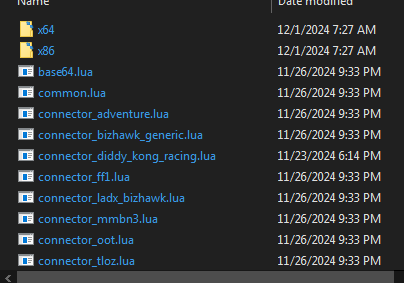
The text client MUST be connected for the lua to work. SO connect first then lua.
Other games like our example of YGO Forbidden Memories will use connector_bizhawk_generic.lua. If your game came with it’s own you’ll want to toss it into the <ArchipelagoFolder>/data/lua you can see Diddy Kong Racing has it’s own lua file.
Everything should connect at this point and you should be able to start playing the game. Some games like Diddy Kong Racing want you to start first without connecting to create a save then connect. Our example wants you to commit to a starter deck before you can play. Read up on the setup guide on Multiworld News on what to do. If stuff is breaking asking around the chat might get immediate answers.
Releaseing and Collecting: Some hosts may have not set releasing and collecting to auto. You’ll have to do this yourself when you reach the goal. It’s simply
!releaseand!collect. Make sure to do this if you finish and isn’t set to auto or some people may be waiting on an item.
Sometimes the host sets these so you can do this at anytime in case someone’s game is so broke it can’t be fix or if someone isn’t going to continue their game for whatever reason. It’s not good to abuse these unless it’s your self hosted games.
This concludes Part 1. Part 2 is about hosting a game yourself.
Have fun randoing.
Extra: Hinting!
Hinting: Hints are used to tell other players where the item you need is. You use it with the !hint <item name> command. Hints take “points” to use. You get these points by sending out people’s items (doing checks). The text client might suggest a hint at the item if you aren’t exactly sure what it’s named. Or it could give something completely way off. You can also type /items to get a list of items.